Accepting Payments
The POS application accepts payments from various configurable tender types that meet the requirements for each retailer. Advanced Store provides retailers with an application for configuring acceptable payment methods for their specific business requirements.
When tendering, the customer may pay for a transaction with any configured tender or a combination of configured tender types by specifying the amount to be taken off with a specific tender type. To verify if the amount due has been charged to the selected tender or combination of tenders in an unfinished transaction, check the POSLog data in ETS. Associates can also find transaction-level data of unfinished transactions in ETS. For more information, consult with an NCR Voyix representative.
This section demonstrates the steps to process sales transactions using different forms of tender.
Configurable features
The POS application can be configured with the following features.
- Configure preferences for each form of tender that the retailer accepts. Define which Tender Type the tender falls into (currency, charge, media, loyalty). Refer to the following option:
- Tender Definitions > all options.
- Define the overpayment threshold value and the tender types available. Refer to the following options:
- Change Due Setup > Overpayment Threshold
- Change Due Setup > Tender ID
- Change Due Setup > Above Threshold Overpayment Options
- Change Due Setup > Below Threshold Overpayment Options
- Specify additional tender options to be displayed on the More Tender Options POS screen. Refer to the following section:
- Configure the cash drawer limits and POS application behavior related to the cash drawer. Refer to the following options:
- Cash Drawer > all options
- Print a tax form when the accumulated amount of cash-equivalent tenders in a sales transaction meets the threshold amount specified by the IRS. Refer to the following options:
- Tender Threshold for Print > all options
Understanding the Tender Menu
The Tender Menu lists all the tender types that have previously been defined for use as option buttons. The Tender Menu screen is displayed after selecting the Total button during a transaction. Use the Tender Menu to select the form of tender that the customer is paying with.
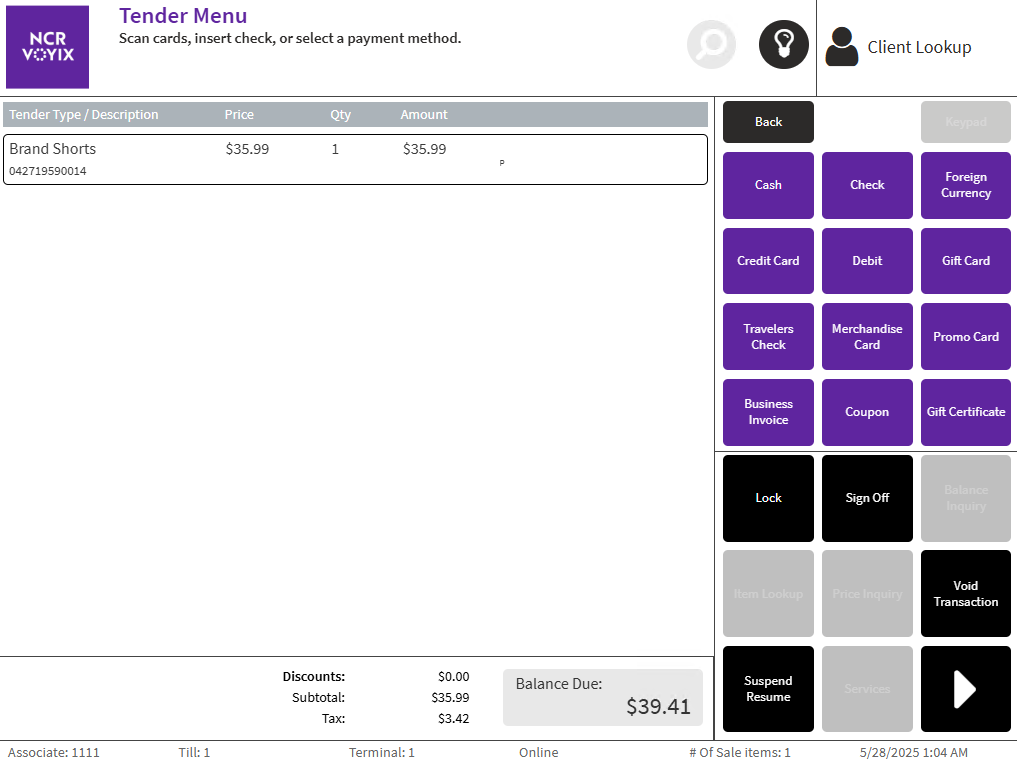
The following sections describe the default tenders:
- Accepting cash
- Processing check payments
- Accepting foreign currency
- Accepting credit cards
- Accepting debit cards
- Accepting gift cards and merchandise cards
- Accepting traveler’s checks
- Accepting promotional cards
- Accepting business invoices
- Accepting coupons
- Accepting gift certificates
- Accepting member loyalty rewards
The following sections describe the configurable tenders:
- Accepting manual EFT payments
- Accepting house cards
- Accepting house account as payment
- Accepting dividend as payments
- Accepting member loyalty rewards
- Ordering an item for store pick-up
- Accepting additional tenders
- Accepting purchase orders
Understanding the Change Due Tender Menu
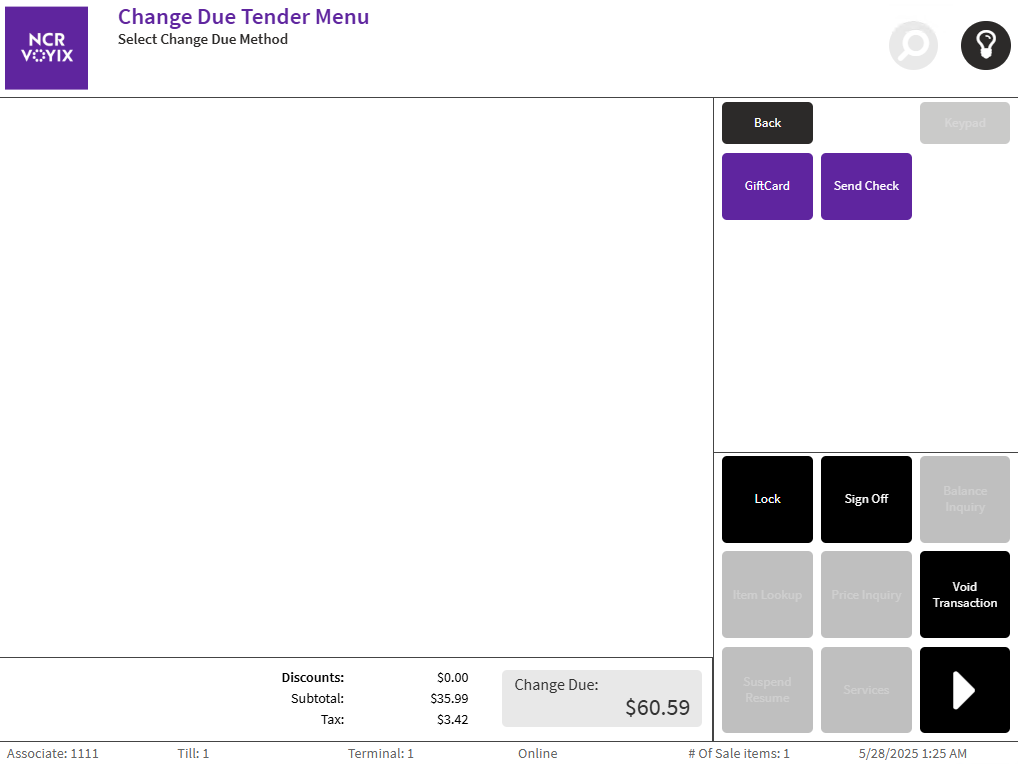
After accepting the tender amount, the POS application checks the calculated amount of change due amount to make sure that it meets the overpayment threshold set by the retailer. The overpayment threshold determines the forms of tender that are available on the Change Due Tender Menu screen. For example, in the following image, only gift card and paper check are valid forms of tender for providing change to the customer.
Understanding Insufficient Cash Funds in Drawer
If accepting cash tender, the POS application automatically compares the cash in drawer amount and change due amount. If the change due amount is greater than the cash in the drawer, the POS displays the Insufficient Cash Funds in Drawer screen.
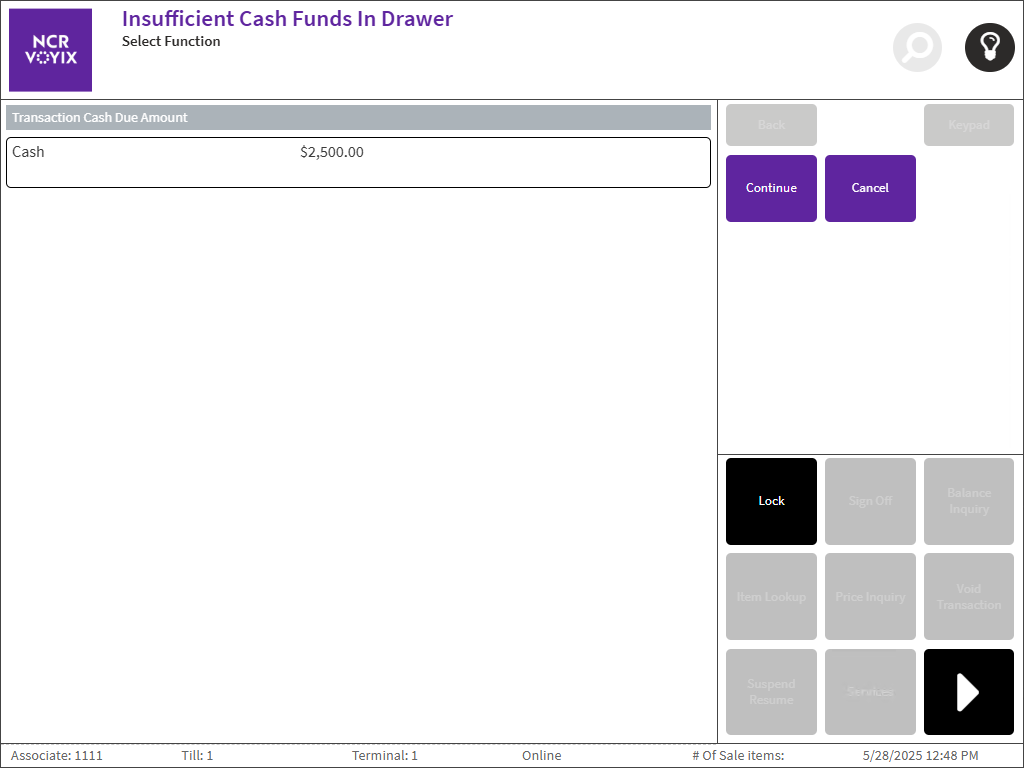
There are other types of transactions or tendering where the POS application also displays the Insufficient Cash Funds in Drawer screen. This can occur whenever a transaction involves opening and taking cash from the drawer, including the following events:
- Change due for cash tender
- Change due for check tender
- Change due for traveler’s check
- Change due for foreign currency
- Refund
- Debit cash backNote
When the POS application is integrated with specific payment authorizers, the change and cash back amounts will display on the Change Due screen after performing a debit cash back. The tender line items will no longer appear.
- Gift card cash out
- Dividend cash out
- Paid out
- Pickup
- Post void
- Returns
The Insufficient Cash Funds in Drawer screen may be configured to display the Continue button only, Cancel button only, or both. The default configuration is to display both buttons. For more information, refer to Cash Drawer. The following instances are possible:
- Continue—proceeds with the transaction and opens the cash drawer.
- Cancel—returns to the previous screen.
Understanding tax form printing
The Internal Revenue Service requires retailers to print and submit tax forms when the accumulated amount of cash-equivalent tenders in a sales transaction meets the threshold amount specified by the IRS. Retailers can configure the threshold for the accumulated cash-equivalent tenders as needed. For more information, refer to Tender Threshold for Print.
The following tasks are required to be able to print the IRS tax form:
- Install Portable Document Format (PDF) reader software.
- Save a copy of the IRS tax form file in the same directory where the PDF software is installed.
- Specify the location of the PDF reader executable and the tax form file in the following EOM option:
- Tender Threshold for Print > Command To Print.
The POS application displays the following message during a sales transaction after the associate selects the form of tender.

To print the tax form outside of a sales transaction, refer to Printing tax forms.
Sample Receipt
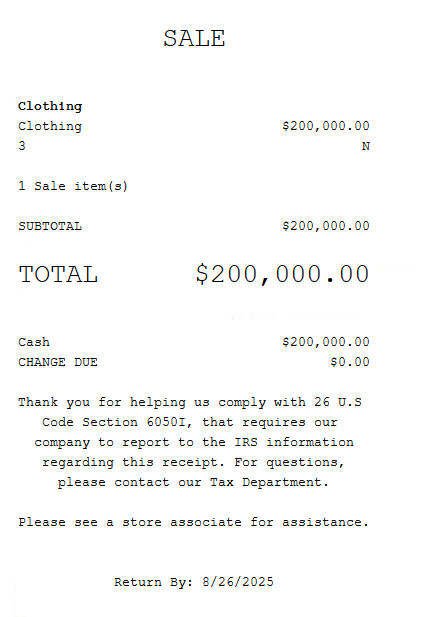
The following receipt shows the text that is printed when the total amount tendered for specific forms of tender is greater than the defined threshold.