Accepting purchase orders
Retailers can accept purchase orders issued by customers. When this feature is configured, the POS application displays the Purchase Order Information screen for the associate to enter the Organization and Organization # information during non-receipted return, transaction-not-found, and offline return transactions. The POS application does not ask for this information during receipted return transactions.
The following configuration is required for the Purchase Order feature:
- Display the Purchase Order Information screen and ask for the Organization and Organization # information during a purchase order transaction. Refer to the following options:
- Tender Setup > Enable Purchase Order Form
- Modify the existing Business Invoice tender name to Purchase Order to display the correct button name. Refer to the following options:
- Media tender types > Tender name
- Media tender types > Tender ID
Configurable features
The POS application can be configured with the following features:
- Specify which associates are authorized to perform purchase order transactions. Refer to the folowing:
- Authorization Overrides > Authorization Functions > AccountsReceivableTenderAuthorization
To accept purchase orders, follow these steps:
- On the Tender Menu screen, select Purchase Order. The application displays the Purchase Order Amount screen.
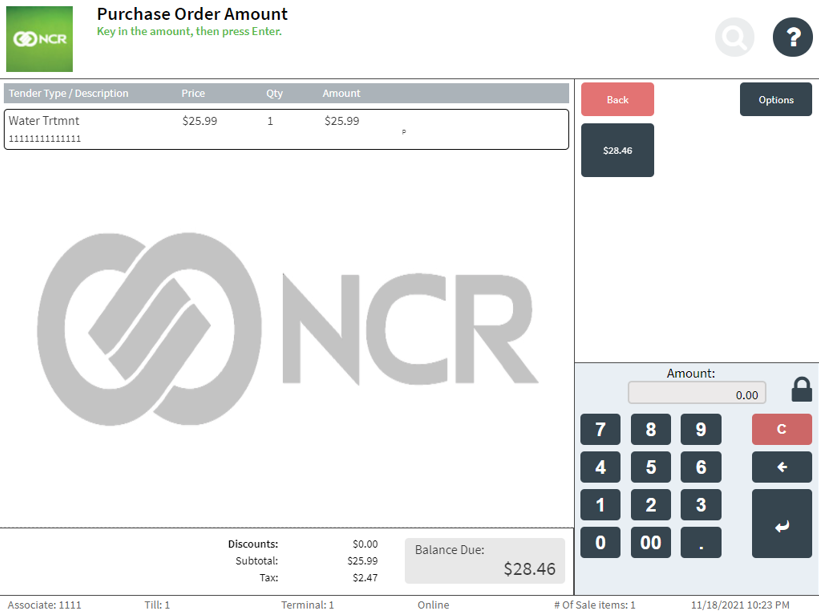
- Do one of the following:
- From the suggested amount in the options menu, select the amount.
- Enter the amount on the keypad, and then select Enter.
NoteIf an associate is not authorized to perform the purchase order transaction, an authorized associate must approve it.
The application displays the Purchase Order Information screen.
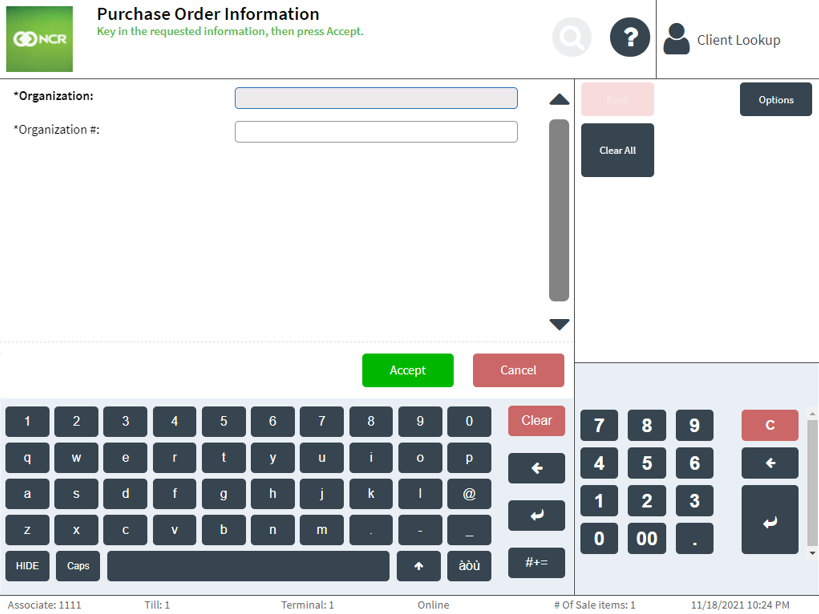
- Enter the required Organization and Organization # information, and then select Accept.
The application displays the Receipt Preference screen.
- Select a receipt type, and then complete the transaction.
Sample receipt
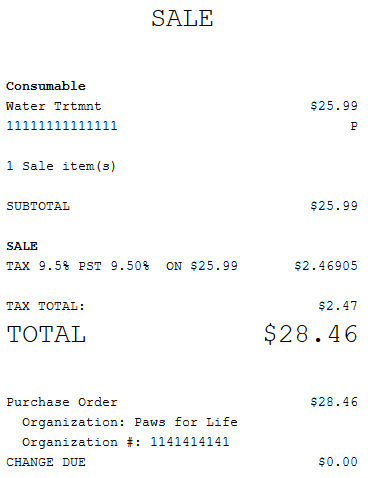
Sales receipt with purchase order information