Ordering an item for store pick-up
To create orders to be picked up in another store, follow these steps:
- On the Ship or Pickup screen, select Pickup in Store. The application displays the Pick Up Store Number screen.
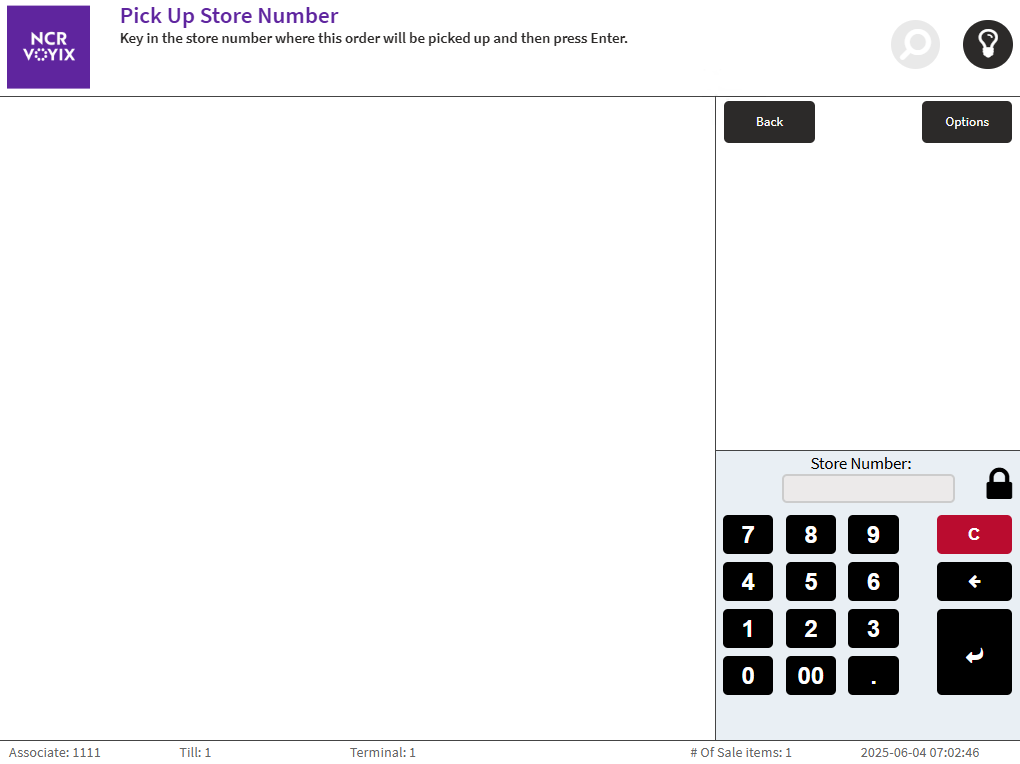
- Enter the store number of the store where the order must be picked up, and then select Enter. The application displays the Customer Information screen.
- Enter the required customer information on the respective fields, and then select Accept. The application displays the Payment Time screen.
 Note
NoteIf there are items not available for ordering, the application displays the (Some/All) Items Unavailable screen.

- Select one of the following:
- Order Available Items—removes the unavailable item, orders only the available item, and displays the Sale Main Menu screen.
- Cancel Order—displays the Sale Main Menu screen without creating the order.
- Select one of the following:
- Pay Now—displays the Sale Main Menu screen and permits the customer to pay the order such as in a regular transaction. An Order01 item description is added to the line item.

- Pay at Pick Up—permits the customer to pay the ordered item at the designated store. The application flags the order as Pay at Pick Up, processes the tender as Accounts Receivable, and prints the receipt.
NoteThe application permits only one Pay at Pick Up order for each transaction.
- Pay Now—displays the Sale Main Menu screen and permits the customer to pay the order such as in a regular transaction. An Order01 item description is added to the line item.
Sample receipts
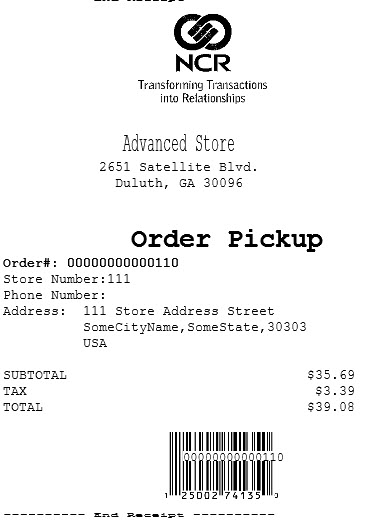
The following image displays a sample Pay at Pick Up receipt with the order number printed.

The following image displays a sample of a Pay at Pick Up chit that is printed together with the receipt.