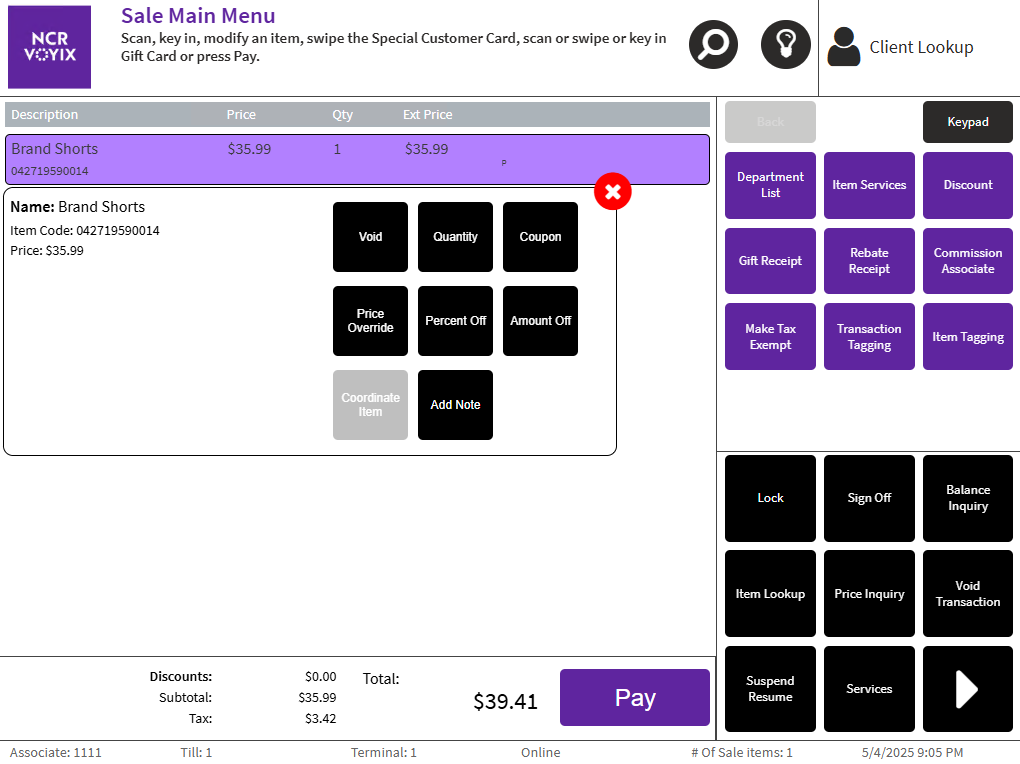
Changing the Price of an Item
Authorized associates can manually change item prices in a sales transaction using the following methods:
If an item's quantity has already been updated during a sale, the associate cannot apply a price override, manual percent markdown, or manual amount markdown to the item. By default, the POS application grays out the following buttons in the Item Options panel after an associate changes an item's quantity: Price Override, Percent Off (markdown), and Amount Off (markdown). However, if an associate wants to change the quantity of an item and still apply a price change to the item, they can apply the price override or markdown to a single item first and then change the quantity by selecting the Quantity button on the Item Options panel. The price override or markdown will apply to the new total quantity.
This POS behavior does not apply to coupons. To understand coupon discount behavior, refer to Applying an Item Coupon Discount.
Configurable features
The POS application can be configured with the following features.
- Enable multiple price overrides. Retailers can continue to change an item's price after a manual markdown or a transaction discount has been entered. Refer to the following option:
- Markdown Properties > Disable After Use
- Apply a markdown to the total quantity of an item in a sale or exchange transaction. This feature enables the Price Override, Percent Off, and Amount Off buttons in the Item Options Panel after the quantity of an item has been updated. Refer to the following option:
- Menu Buttons > Enable Item Price Modifiers for Multiple Quantity items
- Set an allowable maximum amount for a new price. Refer to the following options:
- Authorization Overrides > TransactionDiscountOverLimit
- Discounts > Maximum Tran Discount Amount
- Change the item clearance flag from dividend-eligible to non-dividend-eligible. Depending on the store’s policy, customers may not be entitled to dividends when purchasing promotional offers or clearance sale items. The new clearance flags are applied after a successful price change, overruling the clearance flags defined in the Product Catalog. Refer to the following options:
- Clearance Flags > Clearance Flag
- Clearance Flags > Price Ending Value
- Clearance Flags > Sequence Number
- Prevent associates from making price changes or applying manual amount off and percent off markdowns to specific items in a sale transaction without restricting other discounts, including AMS offers. Refer to the following section:
Accessing item-level markdowns
To access item-level markdowns, select an item from the Sale Main Menu item list. The POS application displays the following item-level markdown buttons on the Item Options Panel:
- Price Override
- Amount Off
- Percent Off