Applying an item-level markdown
During a sales transaction, associates can manually apply a fixed amount off or a percentage off of an item's price.
Configurable features
The POS application can be configured with the following features:
- Specify the reason for the markdown. Refer to the following options:
- Sale Markdown Reason Codes > Markdown Reason Code
- Sale Markdown Reason Codes > Markdown Reason Description
- Hide the Amount Off and Percent Off buttons from the Item Options pane. Refer to the following options:
- Menu Buttons > Enable Amount Off Button
- Menu Buttons > Enable Percent Off Button
- Specify thresholds for the markdown amount and/or percent that an associate is allowed to apply to an item in a transaction without requiring an authorization override. Refer to the following options:
- Discounts > Maximum Manual Item Discount Amount
- Discounts > Maximum Manual Item Discount Percent
- Restrict entering an amount off or percent of markdown for an item after a transaction discount has been applied. Refer to the following option:
- Markdown Properties > Additional Discounts To Disable
- Display the Remove Manual Discounts button to enable the associate to remove an amount off or percent off markdown that was applied to an item during a sales transaction. If this feature is enabled, the POS application can be configured to require authorization when the associate removes the markdown value. Refer to the following option:
- Menu Buttons > Enable Remove Manual Item Level Markdowns for Sale Items
- Authorization Overrides > Authorization Functions > RemoveItemLevelDiscounts
Setting manual discount thresholds
Retailers can restrict item-level markdowns using two thresholds:
- The Maximum Manual Item Discount Amount threshold limits any percent-off or amount-off discount to a predefined dollar value.
- The Maximum Manual Item Discount Percent threshold limits any percent-off or amount-off discount to a predefined percentage of the original item price.
A retailer can enable either threshold or both. If the discount applied by the associate is greater than the predefined threshold limit, manager authorization is required. If both thresholds are set, the system compares the percent or amount off markdown applied to both thresholds, and requires a manager override if either one is met.
For the first example, assume that only an amount threshold has been set, and the associate applies a percent markdown:
- Maximum Manual Item Discount Amount option = $10
- Price of item = $100
If the associate enters a manual item markdown of 20%, the POS requires manager authorization, because 20% of $100 is $20. $20 is greater than the configured $10 maximum item threshold.
For the second example, assume that both thresholds have been set:
- Maximum Manual Item Discount Amount option = $10
- Maximum Manual Item Discount Percent option = 8%
- Price of item = $100
If the associate enters a manual item markdown of $11, the POS requires manager authorization, because $11 is greater than the $10 maximum threshold.
If the associate enters a manual item markdown of $9, which is lower than the maximum amount threshold of $10, the POS still requires manager authorization, because $9 is 9% of the price of the item, and 9% is greater than the maximum threshold of 8%.
Applying an amount off markdown
To apply a manual markdown amount to an item, follow these steps:
- Select an item in the sales transaction. The application displays the Item Options panel.
- Select Amount Off. The application displays the Markdown Amount Reason screen.Note
If the item is not discountable, the Amount Off button is disabled.
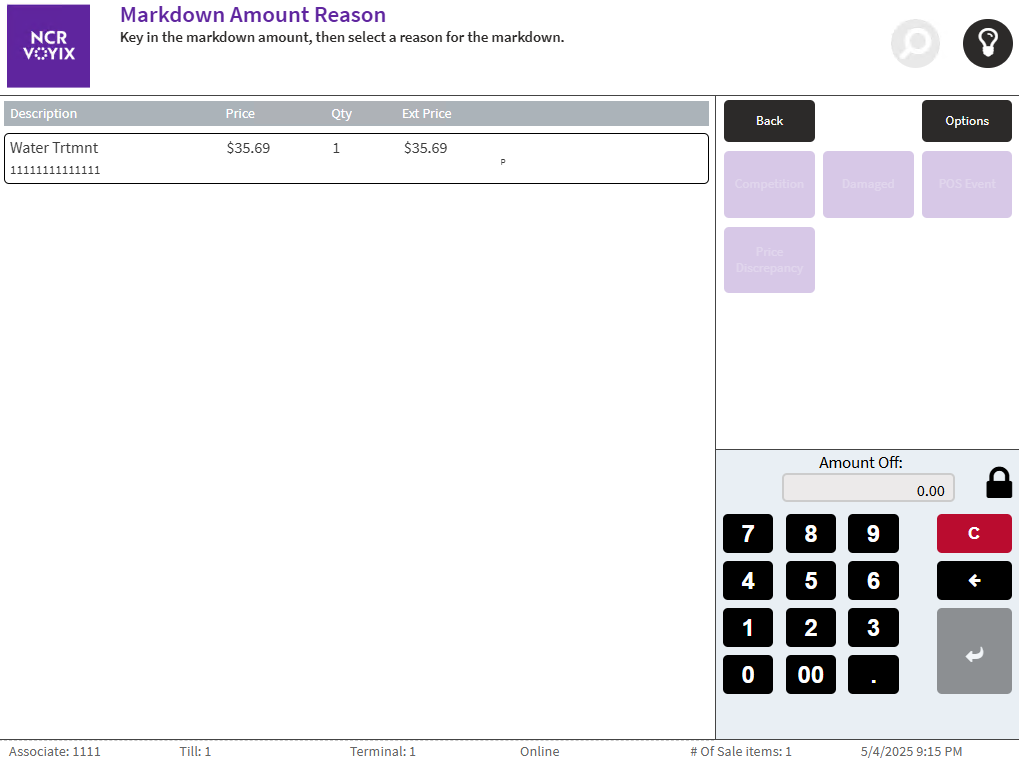
- Enter the amount to be taken off the item's price on the keypad. The POS enables the price change reason code buttons.
- Select one of the following reasons for the markdown:
- Competition
- Damaged
- POS Event
- Price Discrepancy
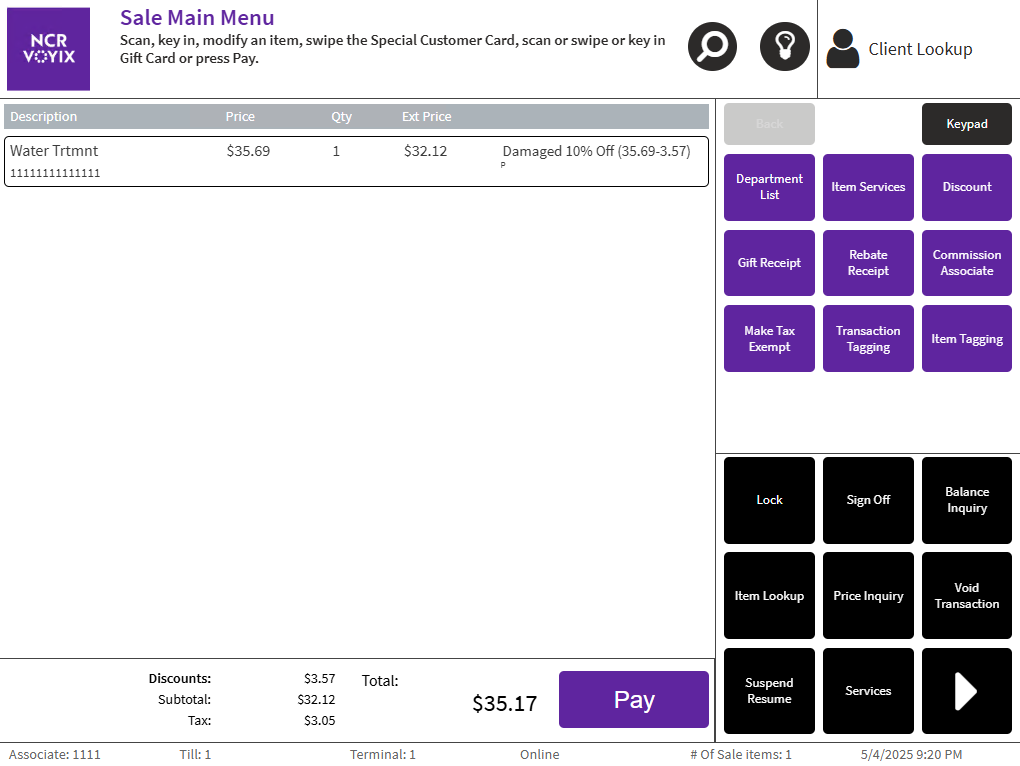
The POS application displays the item with the amount of the markdown, the adjusted price, and the markdown reason on the Sale Main Menu screen.
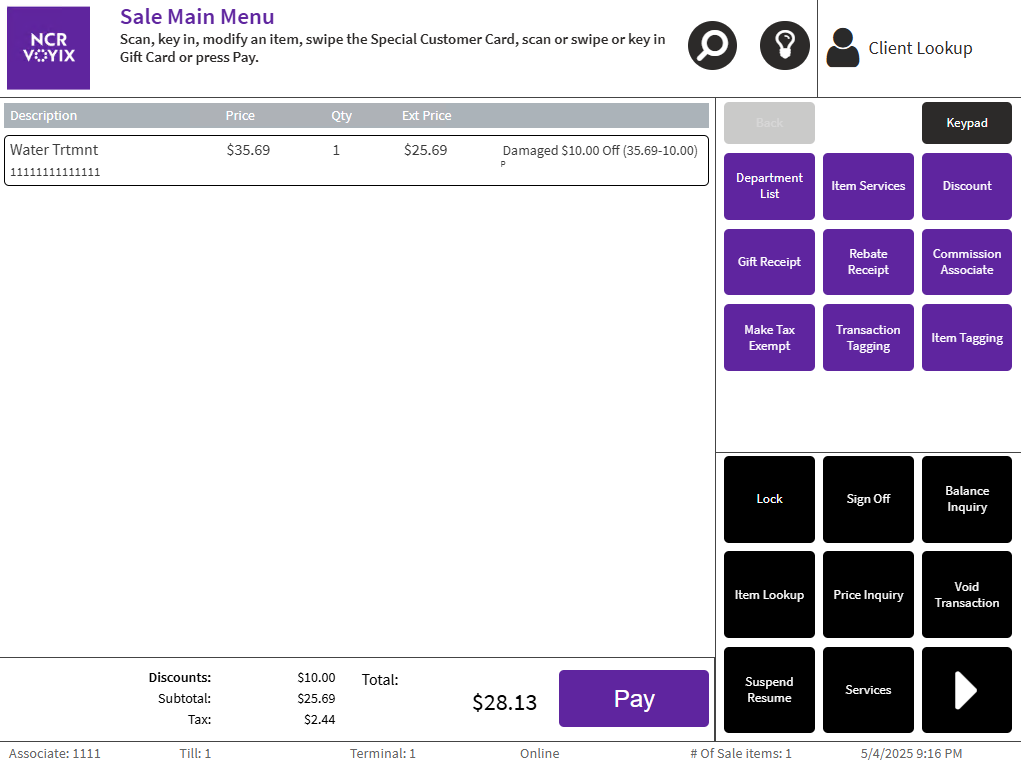 Note
NoteIf either the manual discount amount or its equivalent discount percent are above the maximum threshold(s), if configured, the POS application requires an authorized associate to override the transaction.
- Complete the transaction.
Applying a percent off markdown
To apply a percent off markdown to an item, follow these steps:
- Select an item in the sales transaction. The application displays the Item Options panel.
- Select Percent Off. The application displays the Markdown Percent Reason screen.Note
If the item is not discountable, the Percent Off button is disabled.
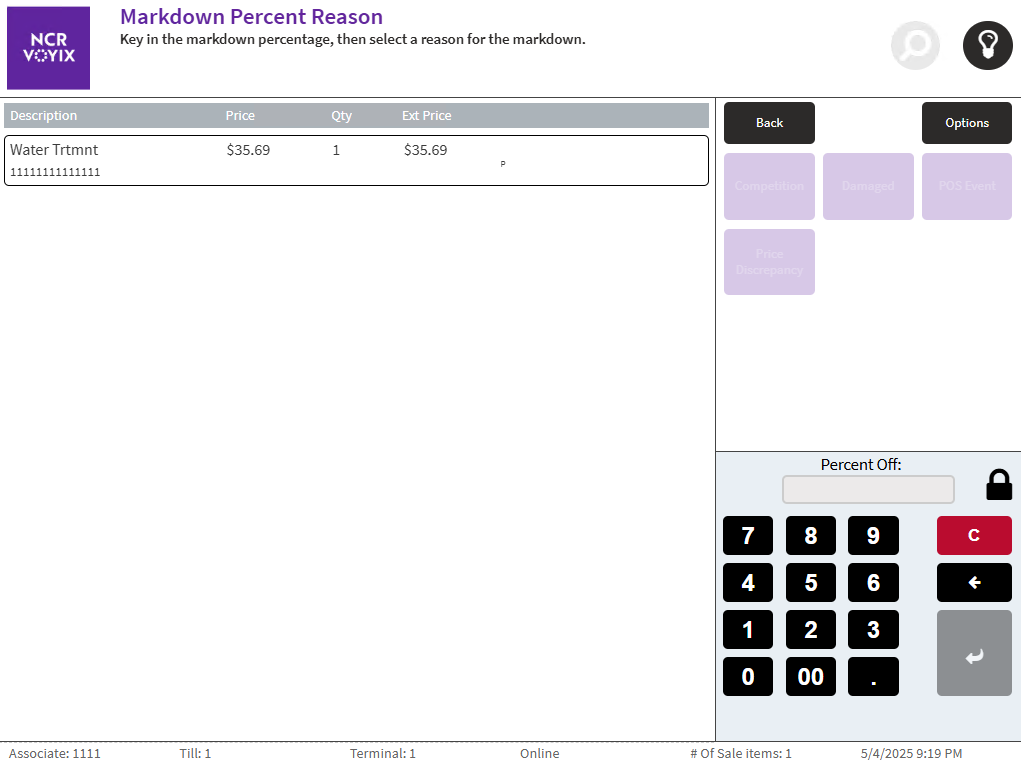
- Enter a percentage amount to be taken off the item's price on the keypad. The POS enables the price change reason code buttons.
- Select one of the following reasons for the markdown:
- Competition
- Damaged
- POS Event
- Price Discrepancy
The application displays the item with the amount of the markdown, the adjusted price, and the markdown reason on the Sale Main Menu screen.
 Note
NoteIf either the manual discount percent or its equivalent discount amount are above the threshold(s) specified, if configured, the POS application requires an authorized associate to override the transaction.
- Complete the transaction.
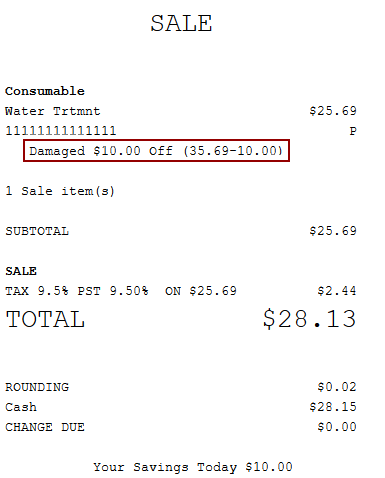
Sample receipt
The following image displays a receipt with markdown amount details.