Printing the savings summary
To increase customer satisfaction and promote repeat business, retailers can configure the POS application to print the savings summary on the receipt when the amount saved in a transaction meets the specified threshold amounts.
Note
This feature applies to sales transactions and exchanges only.
To enable the POS application to print the savings summary, the following conditions must be satisfied:
- The application is integrated with the NCR Advanced Marketing Solution (AMS) application. For more information, refer to AMS Integration.
- The retailer has configured the item’s computed value price in the Product Catalog.
- The retailer has created the discount offer in AMS Logix. For more information, refer to the following sections:
- When applicable, the retailer has configured their Customer Relationship Management service. For more information, refer to the following sections:
- The retailer has modified the parameters specified below to fit their business requirements.
Configurable features
The POS application can be configured with the following features.
- Determine the computed value savings calculation method that is used on the POS systems. Refer to the following option:
- Receipt Printing > Print Comp. Value Savings Type
- Print the savings summary on the sales and exchange receipts. Refer to the following option:
- Receipt Printing > Print Savings Summary on ReceiptNote
The savings summary is printed only when the savings amount is greater than zero.
- Receipt Printing > Print Savings Summary on Receipt
- Provide the threshold amount that the computed value savings amount needs to meet for the printing option to be triggered. Refer to the following option:
- Receipt Printing > Comp. Value Savings Amount Threshold
- Provide the threshold amount that the computed value savings percent needs to meet for the printing option to be triggered. Refer to the following option:
- Receipt Printing > Comp. Value Savings Percent Threshold
- Configure the discount ID type functions. Refer to the following options:
- Discount ID Type > Discount Type
- Discount ID Type > Discount Type Display Text
- Discount ID Type > Discount Type ID
- Discount ID Type > Sequence Number
Sample receipt
The following image displays a receipt with the savings summary.
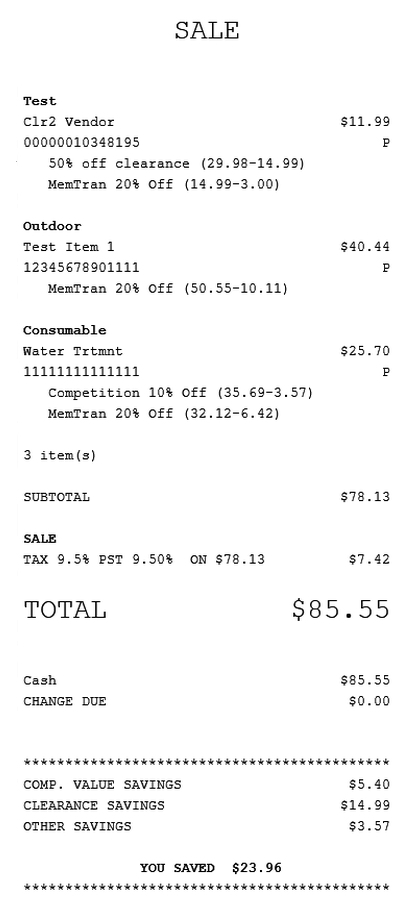
Note
Savings are grouped per type and are printed only when the amount per type is greater than zero.