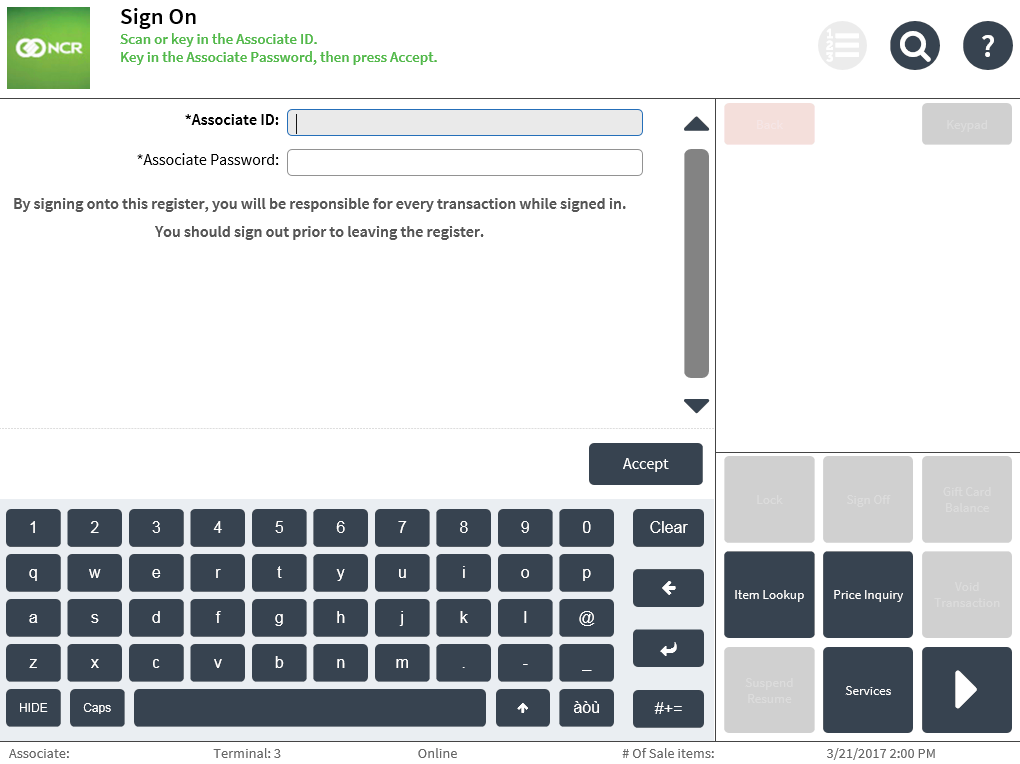
Aligning field labels
Retailers can align the text field labels that display on the POS user interface. By default, field names are left aligned.
This task uses the following file.
| File name | Folder |
|---|---|
| UiManager.Config.xml | %PROGRAMFILES(X86)%\NCR\AdvancedStore\POS\HtmlPsxClient\config |
Note
The changes applied to the specified configuration file will affect the small screen user interface (UI).
To align text field labels, follow these steps:
- Ensure that the POS application has not been started.
- Open the UiManager.Config.xml file.
- Add the <Config name="LabelJustify" value="Left" /> line before the </UiManagerConfiguration> line.
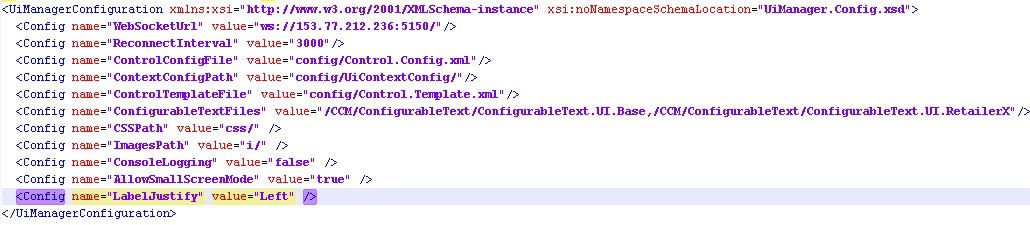
- Change the default value to "Right" or "Center" to align the field labels to the right or center, respectively.
- Save the file.
- Start the POS application, and then verify that the changes have been applied. In this example, the two text field labels on the Sign On screen are now right aligned.