Making a sale
The POS application uses the following methods to sell items:
- Scan the item code or price lookup (PLU) code.
- Enter the item code or price lookup (PLU) code on the keypad.
- Use Lookup to find the item code or price lookup (PLU) code.
- Sell the item through its corresponding department.
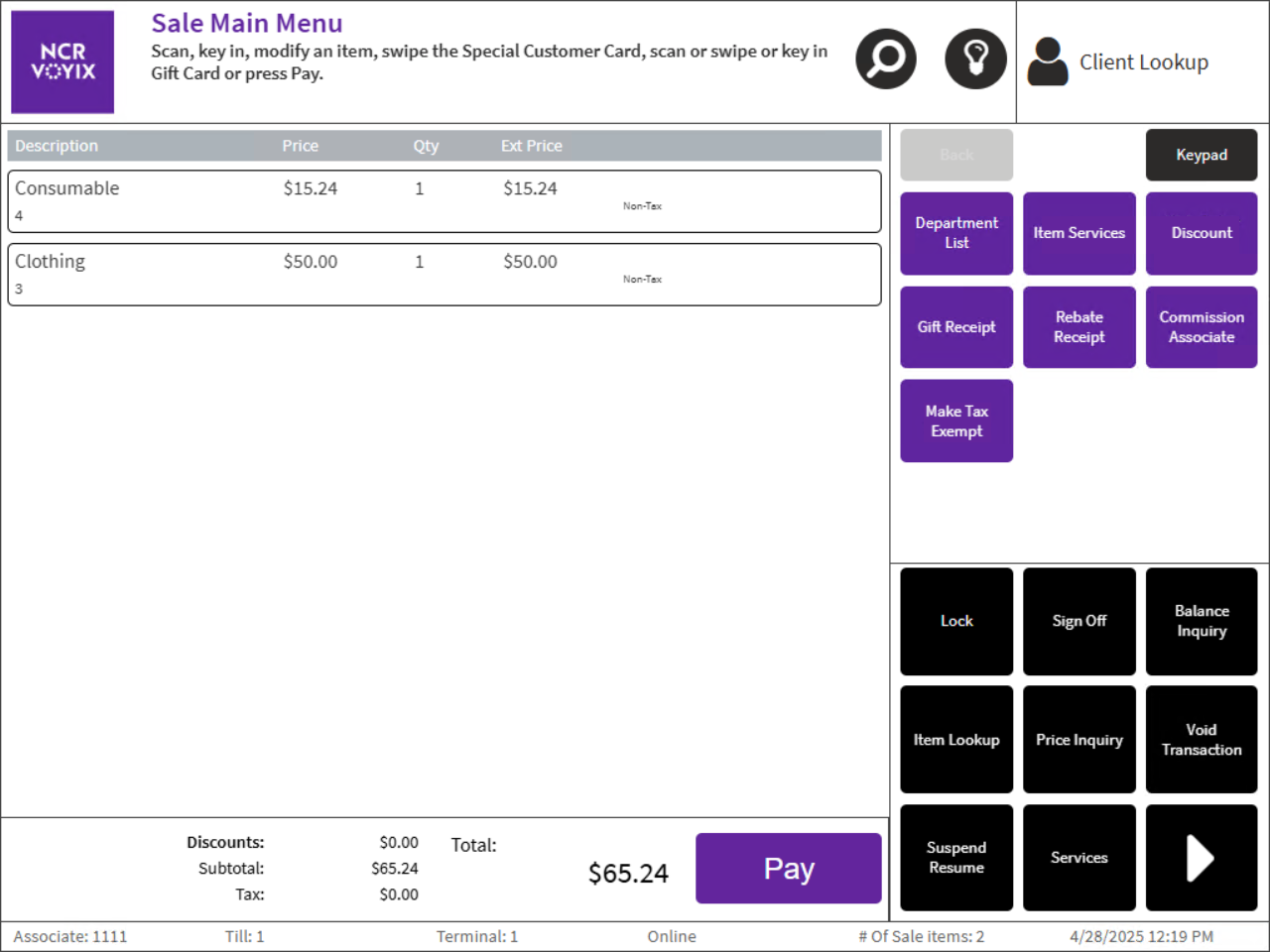
For this sample sales transaction, item codes will be scanned to make a sale. To scan an item, follow these steps:
- Use the bar code scanner to scan the customer’s items. The application displays the items on the Sale Main Menu screen.
 Note
NoteAn item may require additional information before it can be added to a transaction. If configured, the Additional Item Information screen is displayed after the item is scanned or entered into the POS. For more information, refer to Adding additional item information.
- After scanning all the items, select Pay. The application displays the Tender Menu screen.
- Select a payment method. The following tenders are displayed by default:
- Cash—accepts cash payments.
- Check—accepts check payments.
- Foreign Currency—accepts payments in foreign currency.
- Credit Card—uses the credit card to pay for items.
- Debit—uses the debit card to pay for items.
- Gift Card—uses the gift card to pay for items.
- Traveler’s Check—accepts traveler’s check payments.
- Merchandise Card—uses the merchandise card to pay for items.
- Promo Card—uses the promo card to pay for items.
- Business Invoice—accepts business invoice as payment.
- Coupon—accepts coupon as payment.
- Gift Certificate—accepts gift certificate to pay for items.
- Select the transaction button corresponding to the tender amount or enter the tender amount on the keypad. The application displays the Receipt Preference screen.Note
If the Change Due amount is greater than the cash in drawer, the application displays the Insufficient Cash Funds in Drawer screen instead. Select Continue to proceed with the transaction; otherwise, select Cancel.

- For information about the Receipt Preferences screen, refer to Totaling a Customer’s Purchases.
- Select a receipt type:
- Printed—prints a hard copy of the receipt.
- Digital—sends a copy of the receipt through e-mail.
- Both—prints a hard copy of the receipt and sends a copy of the receipt through e-mail.
If change is due to the customer, the Change Due screen is displayed and shows the amount of change due. Depending on the tender type used, the cash drawer may pop open.
- If applicable, provide change to the customer and close the cash drawer. The application displays the Sale Main Menu or the Sign On screen and prints the receipt.
Sample receipts
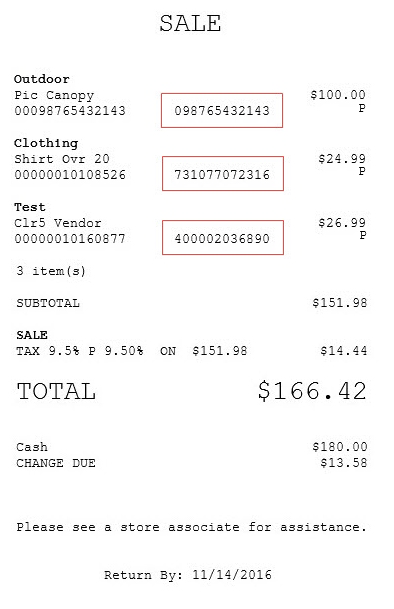
By default, the POS application is configured to print sales receipts without return prices.

When configured, additional item information like Service Invoice is printed.
For inventory purposes and to help track stock in a store, the corresponding stock keeping unit (SKU) number of a product is printed on the Advanced Store transaction receipts. When an item is rung up using the SKU number, it is printed on the same line and to the right of the product code.
For more information about receipts, refer to Understanding the Advanced Store Receipt and Printing Messages on the Advanced Store Receipt.