Printing an associate sign-on chit
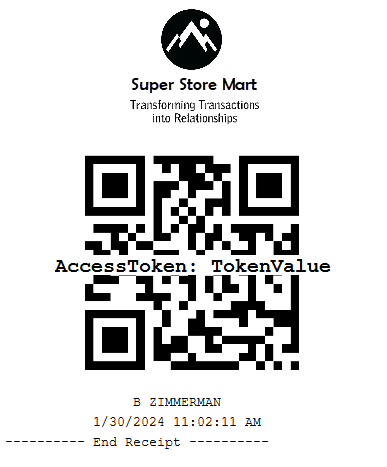
Retailers can print chits with a QR code that allows authorized associates and associates to perform tasks on the POS terminal that require authorization, such as opening or locking the POS terminal, logging in to the POS application, or doing transaction overrides.
The QR code contains a secure authorization token which is retrieved from the AS Web API Server's existing POST api/v8/Security/Login request response. The QR code can be scanned instead of manually entering a username and password on the POS application.
To validate the token, the POS terminal must be online and connected to the AS Web API Server. The access from the QR code expires when the token expires after a configurable amount of time.
When scanning an associate sign-on chit to authorize the printing of another sign-on chit, the same token is printed on the new copy. Printing a copy of the sign-on chit does not retrieve a new token or extend the token's expiration time.
Configurable features
The POS application can be configured with the following features.
- Specify whether or not to print the associate name on the chit. Refer to the following option:
- Company Setup > Display Associate Name on Sign On Chit
- To use an associate sign-on chit when printing another sign-on chit, configure the Associate ID field on the Sign On screen to accept scanned entries with a maximum length large enough to fit the secure token value.
To print an associate sign-on chit from the Services Menu on the POS application, follow these steps:
- Open the POS application. From the Sign On screen, select Options > Services. The POS application displays the Services screen.
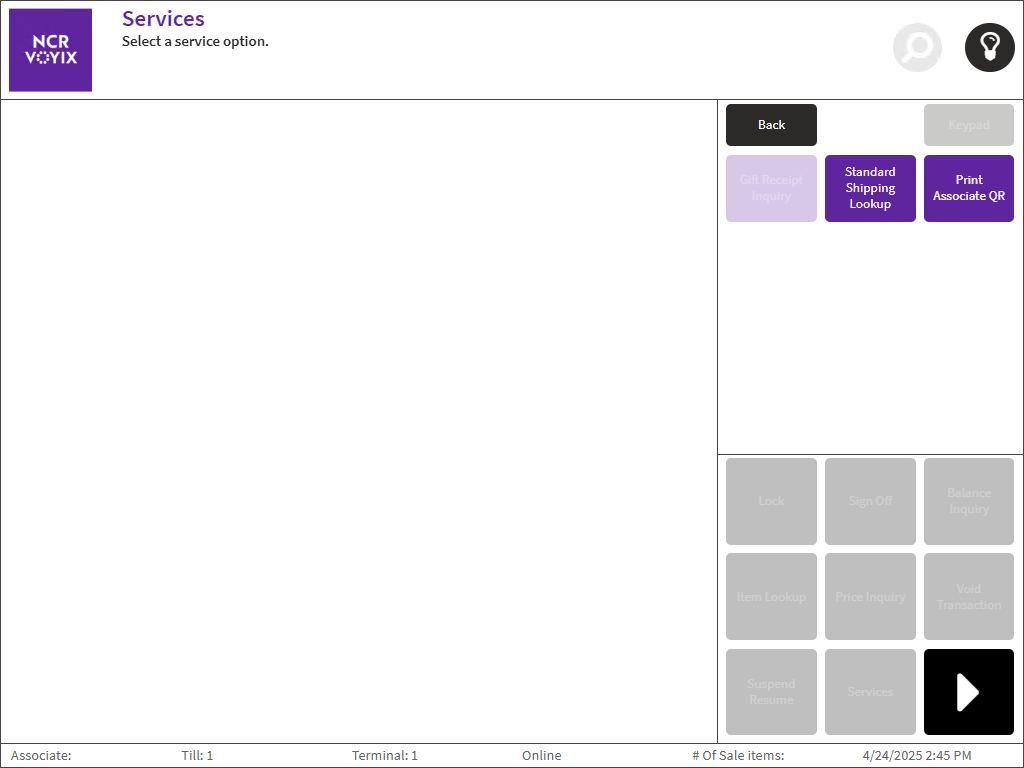
- Select Print Associate QR. The POS application displays the Enter Associate Credentials screen.
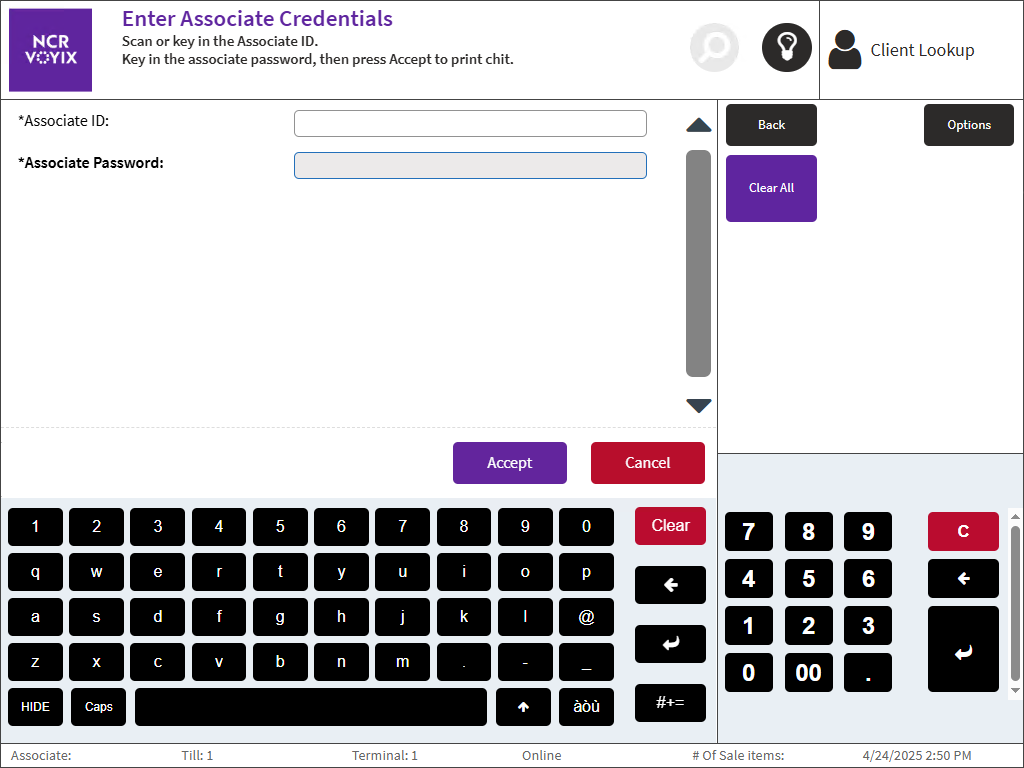
- Scan or enter the Associate ID.Note
The Associate ID is not case-sensitive.
- Enter the Associate Password.
- Select Accept. The POS application prints the associate chit.
Sample receipt
The following image displays an associate sign-on chit.